

To install an MT5 Expert Advisor, place the .ex5 (or .mq5) file in the MQL5/Experts/ folder inside the MetaTrader 5 Data Directory, then restart the terminal. The whole process takes less than two minutes.
Step-by-Step Installation
Follow these five steps to install any MT5 Expert Advisor correctly.
Step 1. Open the MetaTrader 5 terminal. In the menu, go to File → Open Data Folder, or press Ctrl+Shift+D.
This opens the MetaTrader 5 User Data Directory in Windows Explorer — the folder where all terminal data (EAs, indicators, scripts, logs) is stored.

Step 2. Open the MQL5 folder.
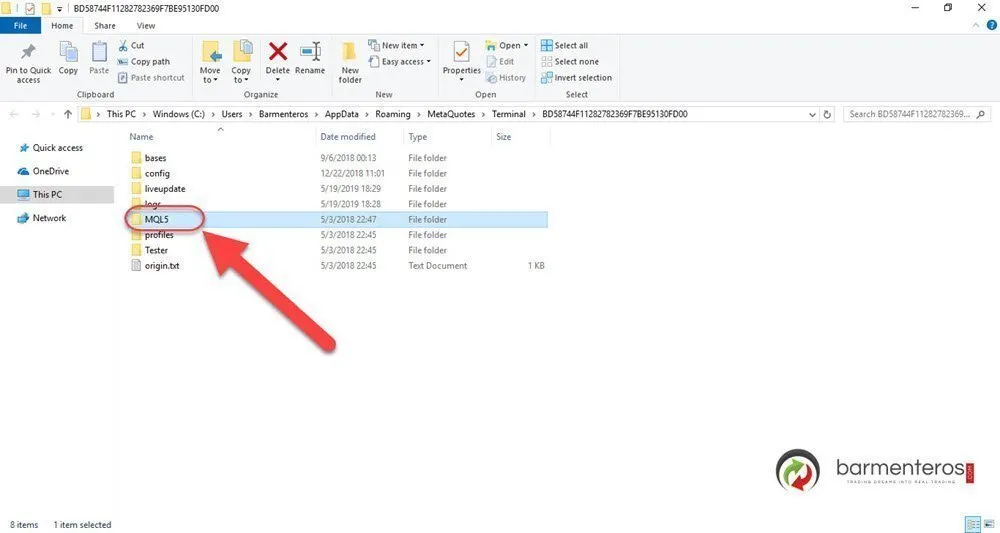
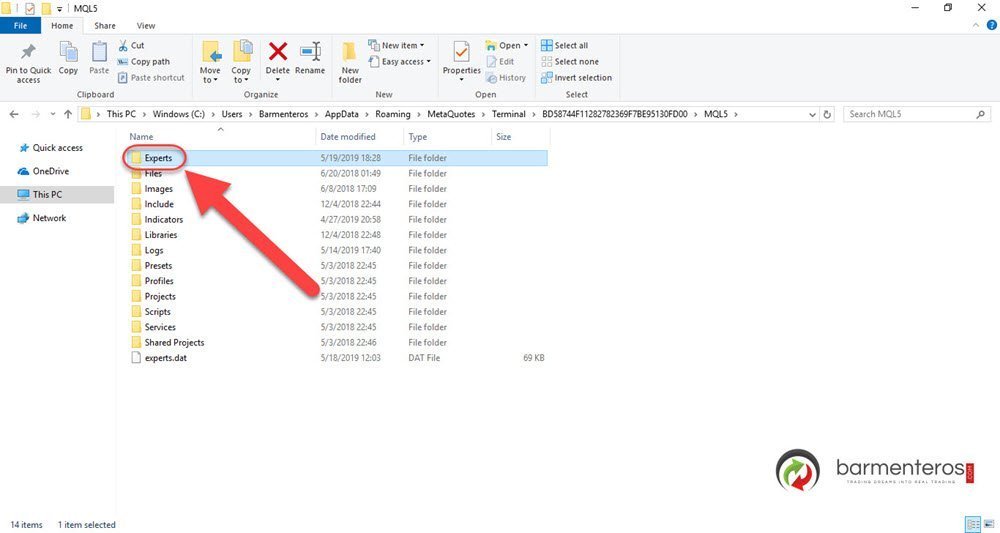
Step 3. Open the Experts folder inside MQL5.
This is the folder MetaTrader 5 reads at startup to load Expert Advisors.
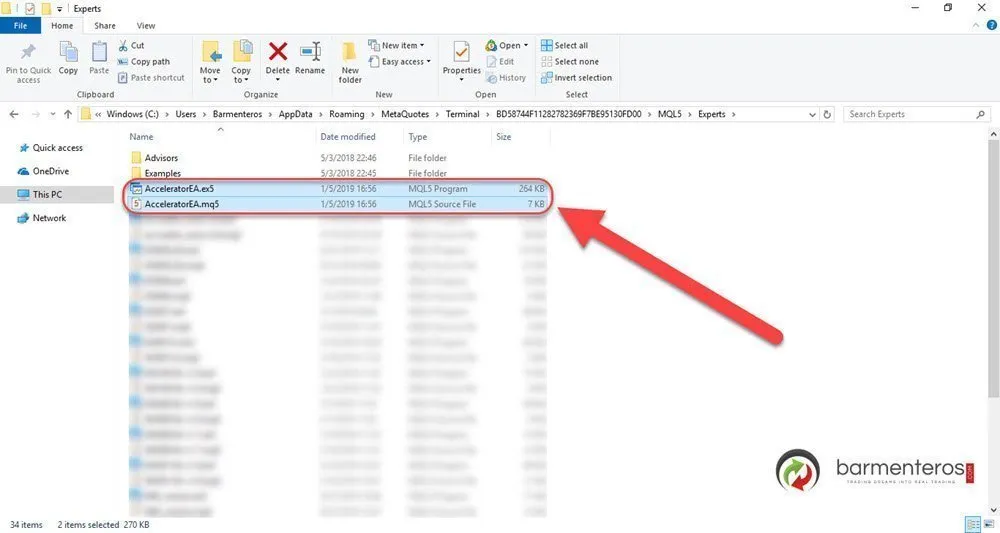
Step 4. Copy your EA file(s) into the Experts folder:
- The compiled file:
YourEA.ex5— required to run the EA - The source file:
YourEA.mq5— optional; only needed if you plan to edit the code
If the developer included both files, copy both.
Step 5. Restart the MT5 terminal — close it fully and reopen it.
MT5 only loads EA files at startup. Restarting is required for the EA to appear in the Navigator.
That’s all. Your EA is now installed and ready to be used in your charts.
Understanding the File Types
MT5 Expert Advisors use two file extensions:
.ex5— The compiled, executable file. This is what MT5 runs. Always required..mq5— The source code. Not needed to run the EA. Useful only if you want to read or modify the code.
If a developer provides only the .mq5 file, MetaEditor can compile it to .ex5: open MetaEditor, load the .mq5 file, and press F7.
Additional files some EAs require:
- Include files (
.mqh) → place inMQL5/Include/ - Library files (
.ex5in a Libraries subfolder) → place inMQL5/Libraries/
If the EA package contains a subfolder structure, replicate it inside MQL5/Experts/. When in doubt, ask the developer — a misplaced dependency file is the most common reason an MT5 EA loads but behaves incorrectly.
Enable Algo Trading After Installation
Placing the files is step one. Before the EA can open trades, Algo Trading must be enabled at the terminal level.
Check the Algo Trading button in the MT5 toolbar. It should be highlighted/active. If it is greyed out or shows an X, click it once to enable it.
Additionally, when you attach the EA to a chart, its settings panel includes an Allow algorithmic trading checkbox. This must also be enabled for automated order placement.
If Algo Trading is off, the EA loads silently but places no orders — no error messages, no indication anything is wrong.
Attach the EA to a Chart
Installing the file makes the EA available in the Navigator panel. To run it, you must attach it to a chart:
- In the Navigator panel (View → Navigator or Ctrl+N), find your EA under Expert Advisors.
- Drag it onto the chart window, or right-click the EA name → Attach to a Chart.
- In the settings window, configure your input parameters and confirm Allow algorithmic trading is checked.
- Click OK. The EA name and a smiley face icon appear in the top-right corner of the chart — this confirms it is active.
Hedging vs. Netting accounts: MT5 supports two account modes. On a hedging account, the EA can open multiple positions per symbol simultaneously — similar to MT4 behaviour. On a netting account, only one position per symbol can be open at a time. Many EAs are designed for hedging accounts. If your EA is not behaving as expected, check your account mode in the terminal: right-click your account name in the Navigator → Properties.
Each chart window runs one EA instance. To run the same EA on multiple symbols simultaneously, open separate chart windows and attach the EA to each one.
Troubleshooting
EA does not appear in the Navigator after restart
Confirm the file is in MQL5/Experts/ — not in a subfolder and not in the root MT5 directory. If you have only a .mq5 file (no .ex5), right-click the file in the Navigator → Compile to generate the .ex5.
“DLL imports are not allowed” error
Some EAs use external .dll files. Go to Tools → Options → Expert Advisors and enable Allow DLL imports. Only enable this for EAs from developers you trust.
Smiley face turns into a sad face after attaching
This means Algo Trading is disabled at the terminal level or Allow algorithmic trading was not checked when attaching. Check both settings.
EA compiles but opens no trades on a netting account
If the EA was designed for a hedging account, it may fail silently on a netting account — particularly if it tries to open positions in both directions on the same symbol. Confirm your account mode with your broker and check whether the EA has a netting-compatible configuration option.
EA compiles but opens no trades (other reasons)
Verify the EA’s logic conditions are met. Many EAs require specific market conditions, session hours, or minimum account balance before placing the first order. Check the Experts tab in the terminal for log output.
Frequently Asked Questions
What is the difference between .ex5 and .mq5 files?
The .ex5 file is the compiled executable — the version MetaTrader 5 runs. The .mq5 file is the source code. You need .ex5 to use the EA. The .mq5 file is optional and only useful if you want to read or modify the logic. If a developer sends only .mq5, MetaEditor will compile it to .ex5 automatically when you open and build the file (press F7).
Do I need to restart MT5 after placing the EA file?
Yes. MetaTrader 5 reads the Experts folder at startup. Files placed while the terminal is running will not appear in the Navigator until you restart. Right-clicking the Expert Advisors folder in the Navigator and selecting Refresh sometimes works as an alternative, but a full terminal restart is more reliable.
What is the difference between a hedging and netting account for Expert Advisors?
On a hedging account, an EA can open multiple simultaneous positions on the same symbol — buy and sell at the same time, for example. On a netting account, only one position per symbol is allowed; opening a new position in the opposite direction partially or fully closes the existing one. Many EAs are written for hedging accounts and will produce unexpected results on netting accounts. Check your account type in the MT5 Navigator before attaching an EA for the first time.
Why is my EA installed but not placing any trades?
The two most common causes: (1) Algo Trading is disabled at the terminal level — the toolbar button should show as active; (2) Allow algorithmic trading was not checked when attaching the EA to the chart. Verify both. Also check the Experts log tab for any runtime errors or “trade context busy” messages.
Where is the MT5 Data Folder on Windows?
Go to File → Open Data Folder in the MT5 menu, or press Ctrl+Shift+D. The path is typically:
C:\Users\[YourName]\AppData\Roaming\MetaQuotes\Terminal\[TerminalID]\
The [TerminalID] is a long hash string — this is normal. Each MT5 installation gets a unique ID.
Installing on MetaTrader 4?
The process is similar but uses different folders (MQL4/Experts/) and file extensions (.ex4 or .mq4). See: How to install an Expert Advisor in MetaTrader 4.

Leave a Reply